
A floor reflection is the subject mirrored in the floor, upside down and joined to it where it touches. The flip is the easy part. What sells it is what happens next: it's sharp where it meets the floor and gets softer and fainter as it goes down, because a floor is never a perfect mirror.
 Before
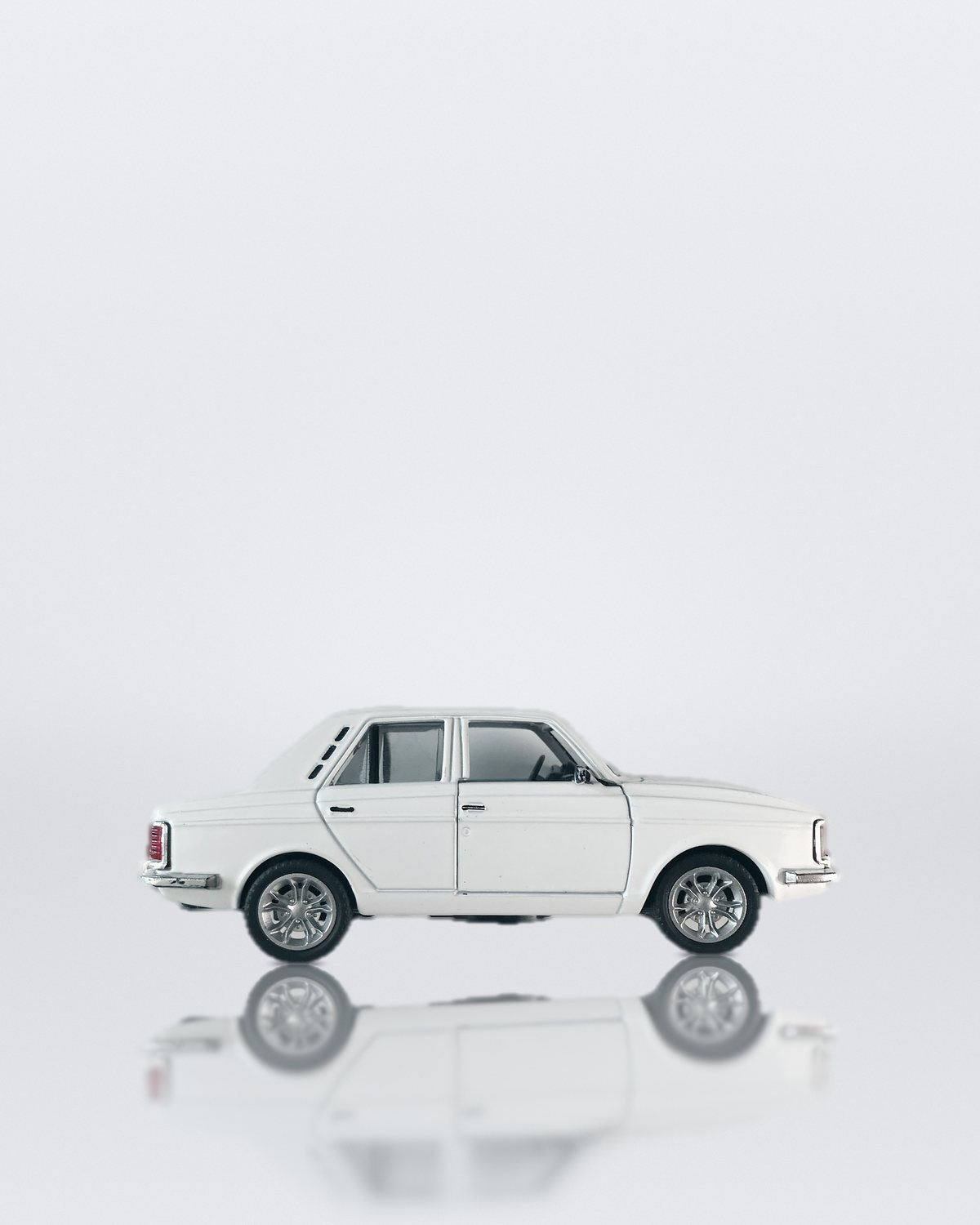 After
Make a floor reflection by hand
- Put the subject on its own layer (Select > Subject, then Cmd/Ctrl+J) and duplicate it.
- Flip the copy with Edit > Transform > Flip Vertical and move it under the subject so the two meet exactly where the subject touches the floor.
- Fade it: add a layer mask and drag a black-to-white gradient so the reflection is strongest at the contact point and gone a short way down.
- Soften it with distance: a little Gaussian Blur, or Motion Blur straight down, more toward the bottom, so it blurs as it gets further from the subject.
- Lower the opacity to suit the floor, and let the floor's own color and texture show through. A reflection never covers a floor completely.
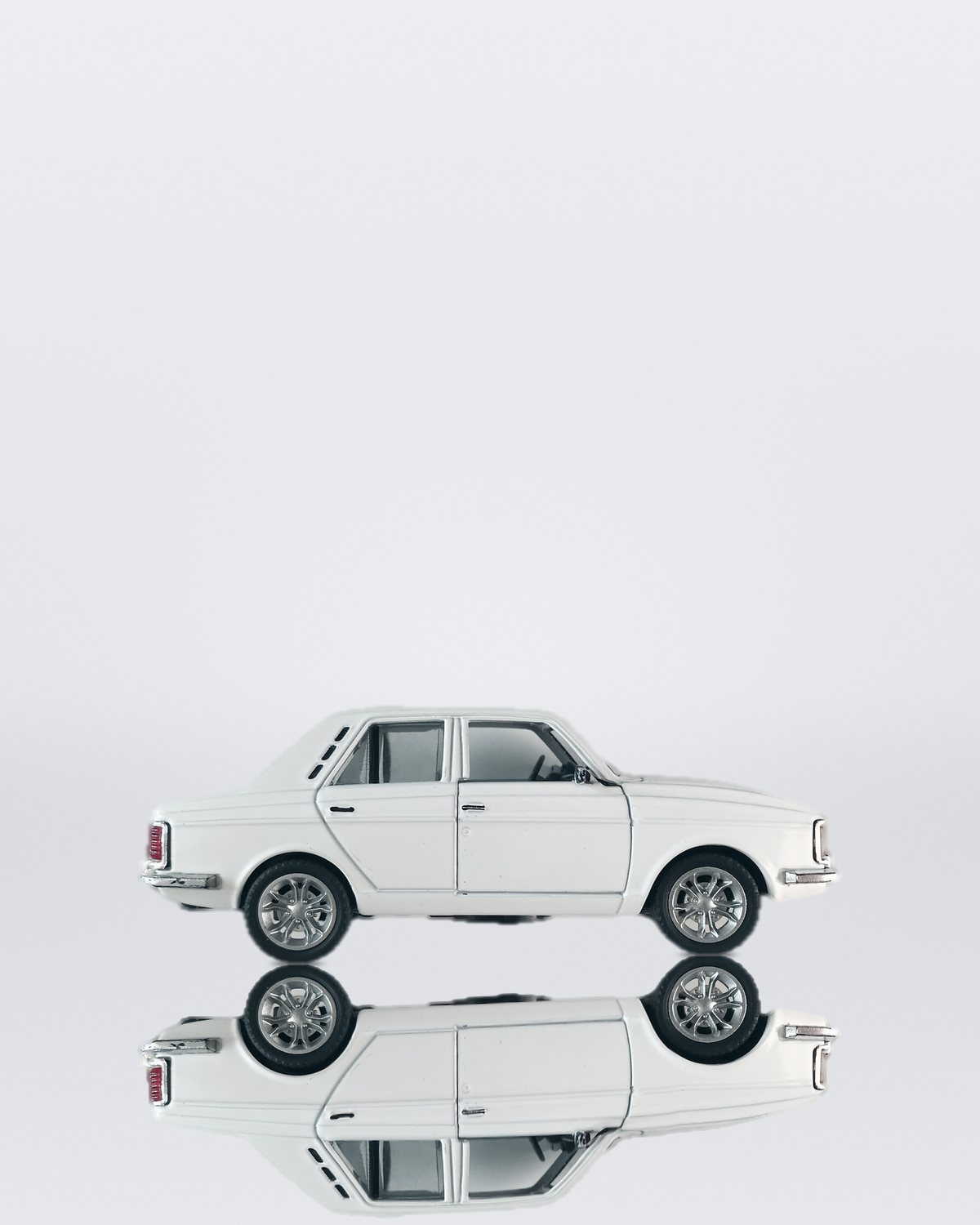
Why a plain flip breaks on cars at an angle
Flip Vertical mirrors everything about one line. That's right only when everything rests at the same height in the picture, like a car seen dead side-on. Seen from a three-quarter view, a car stands on four tires at different heights in the picture, and each tire has to meet its own reflection. One flip leaves the far tires floating above theirs, so by hand you cut the reflection into pieces and line each one up with its own contact point.
Courts, stages and wet ground
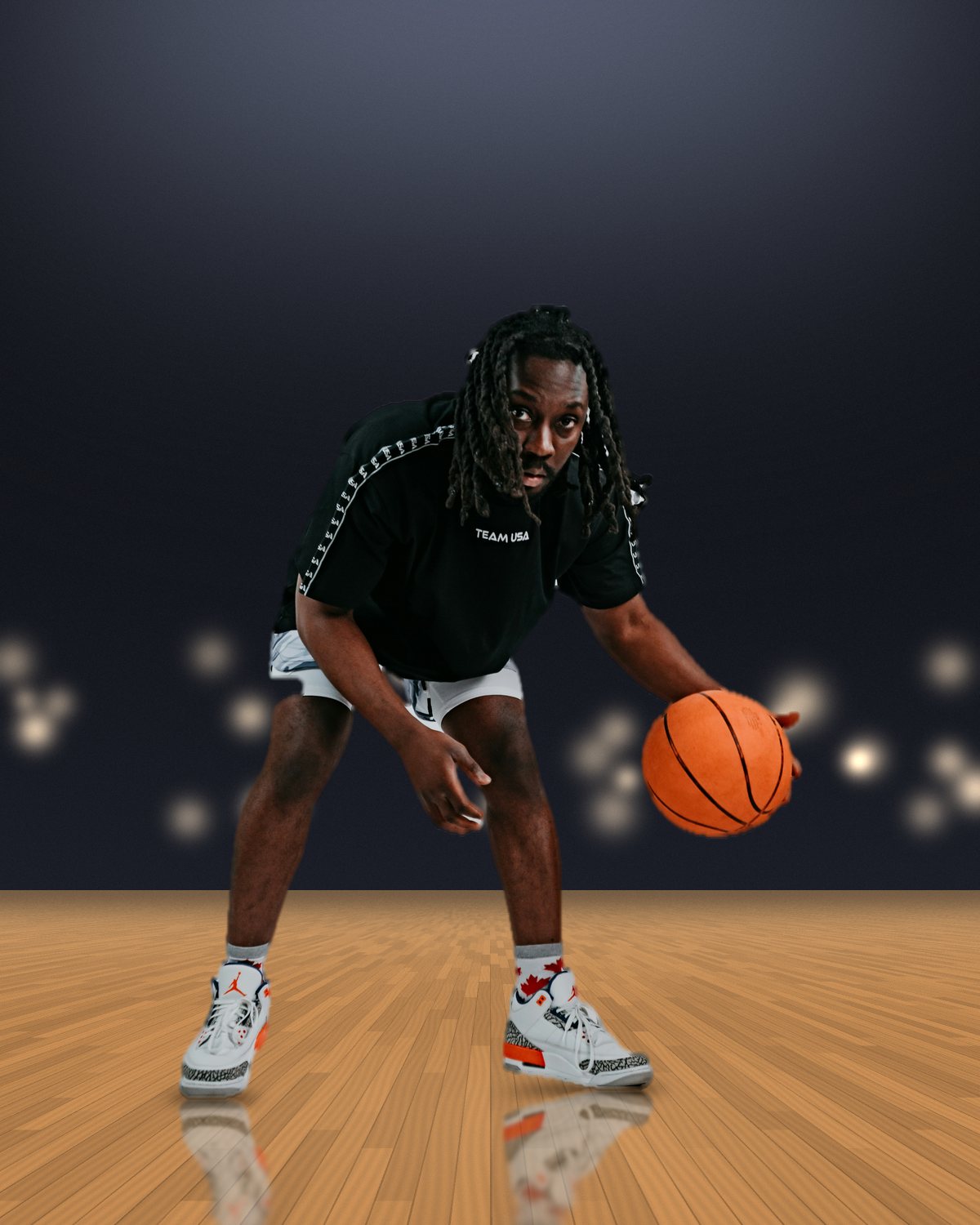
The same steps work for any glossy floor. A basketball court is waxed wood: keep the reflection faint and soft and let the boards show through. A stage or a showroom floor is closer to a mirror, so make it stronger and sharper. Wet ground breaks a reflection up; add a little noise or ripple before you blur it.
The one-step version
In Filter Archive, the Shadow filter has a Reflection style for exactly this: start from the Glossy Court preset. The subject is mirrored in its own colors, sharp where it meets the floor and softer and fainter as it goes down. Touch makes every part resting on the floor meet its own reflection, all four tires of a car or both feet of a player, and Lift handles a jump. The reflection lands on a layer of its own, under your cut-out. See it on the effect page.