
Depth Gradient effect
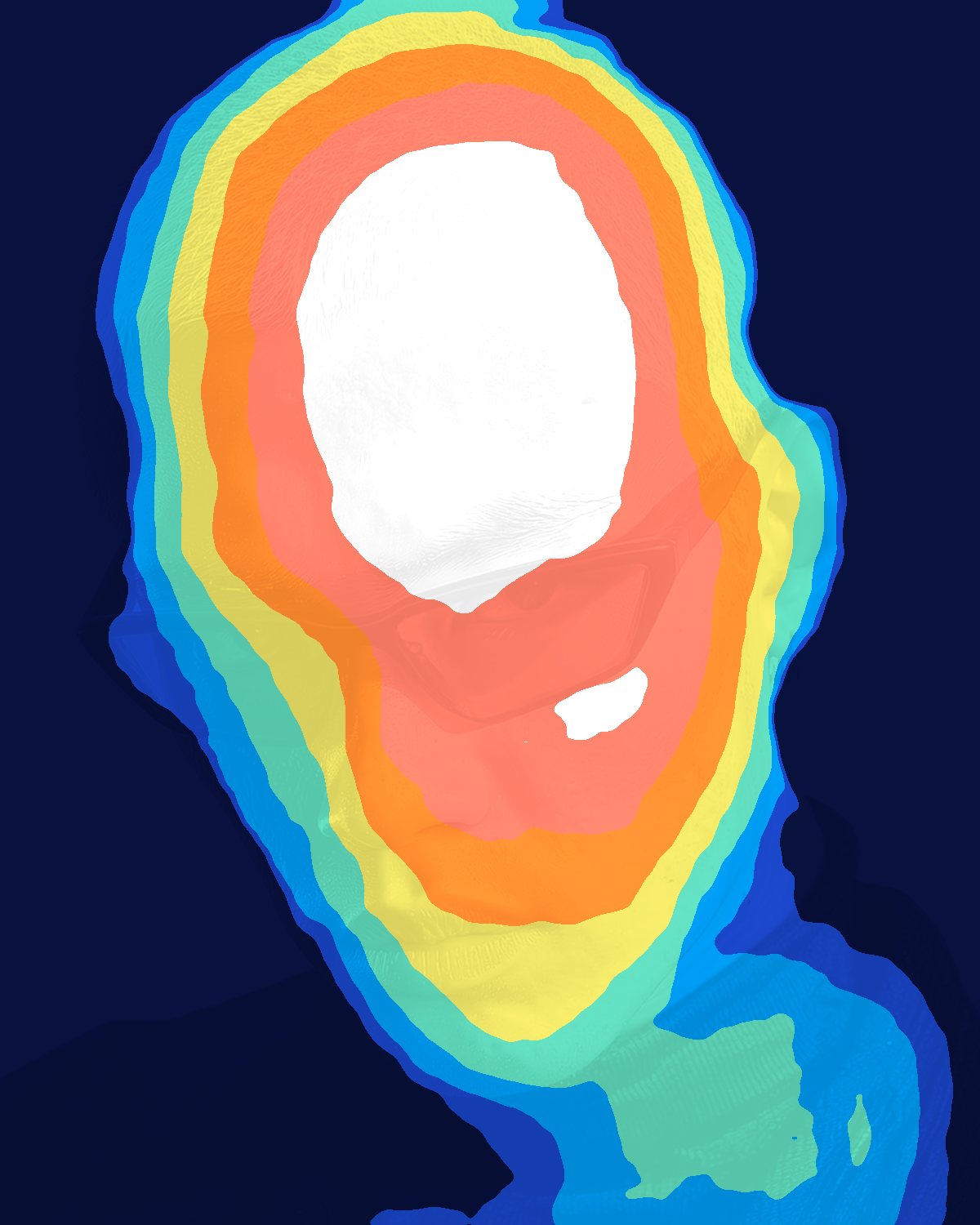
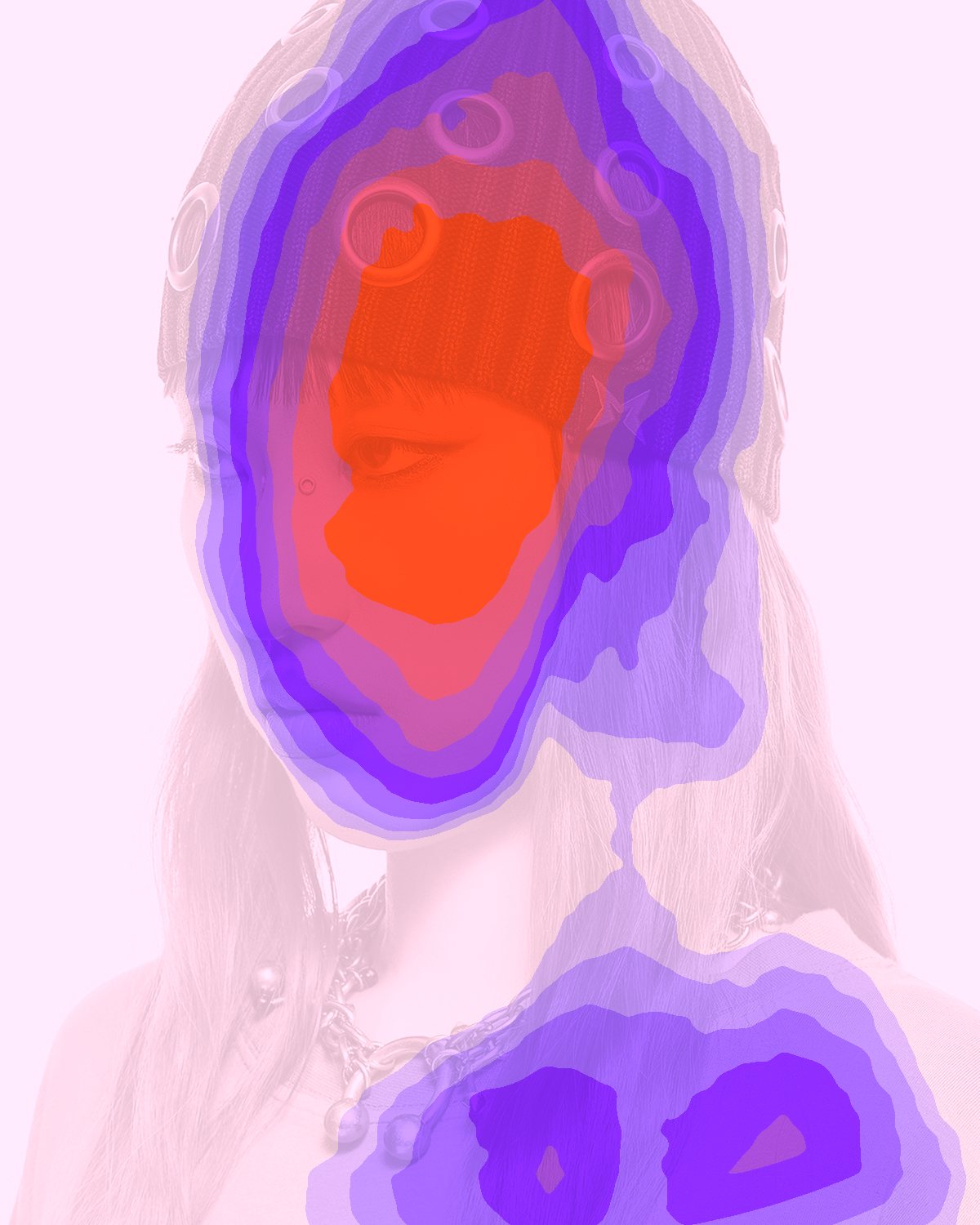
The picture painted through a spectrum by its depth from a dot you place on it.


 BeforeAfter
Light Map reads your photo as a relief and paints it through a spectrum by distance from a dot you place: the nearest point takes the first color and the farthest the last. Step the colors into bands for a thermal-camera look, or keep them smooth for a glowing gradient, with presets from Contours to Heat, Thermal and Ice.
- 5presets
- 43settings
- 3apps
Same effect, different presets.
8 photos, each with its own preset. Try it on yours
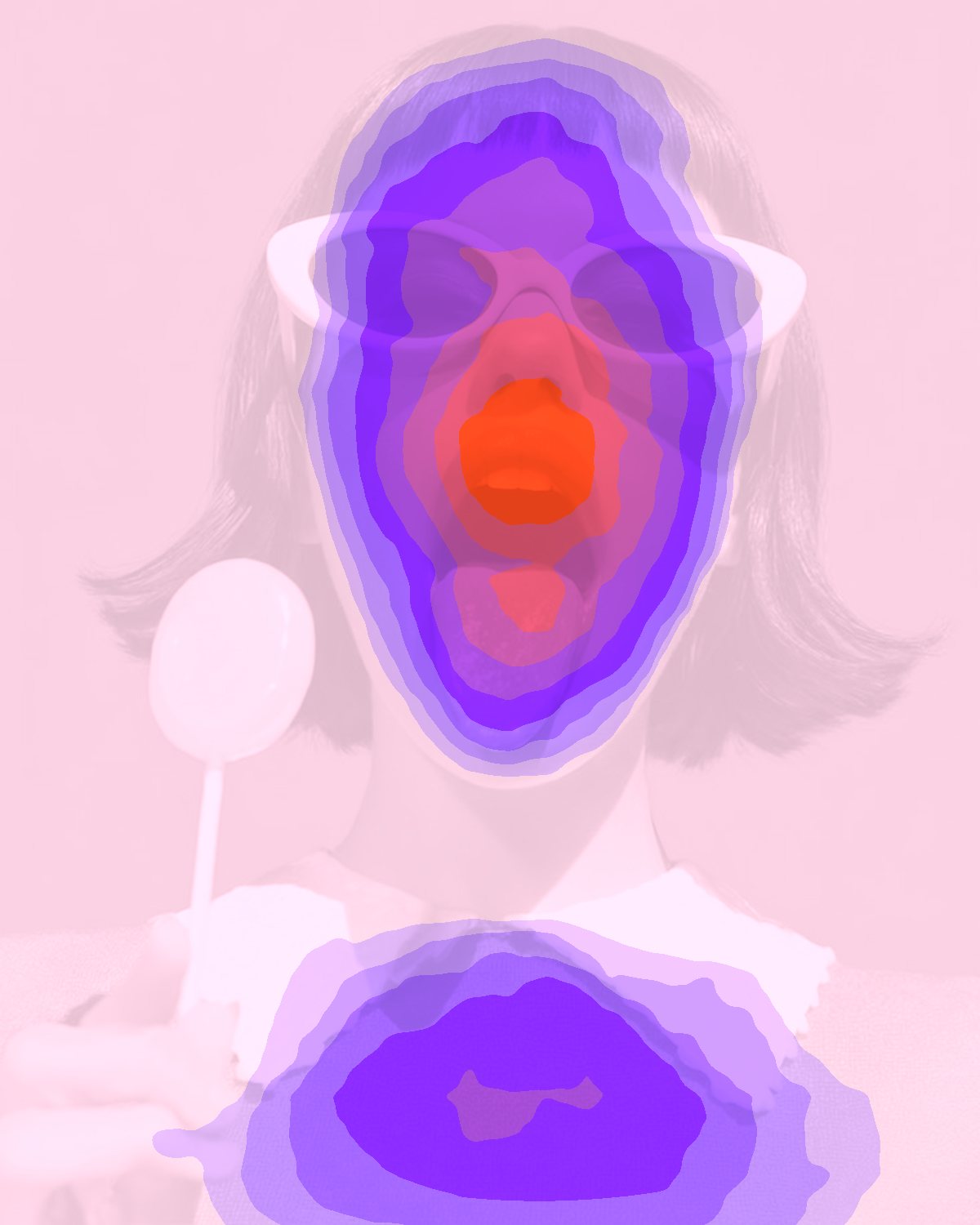
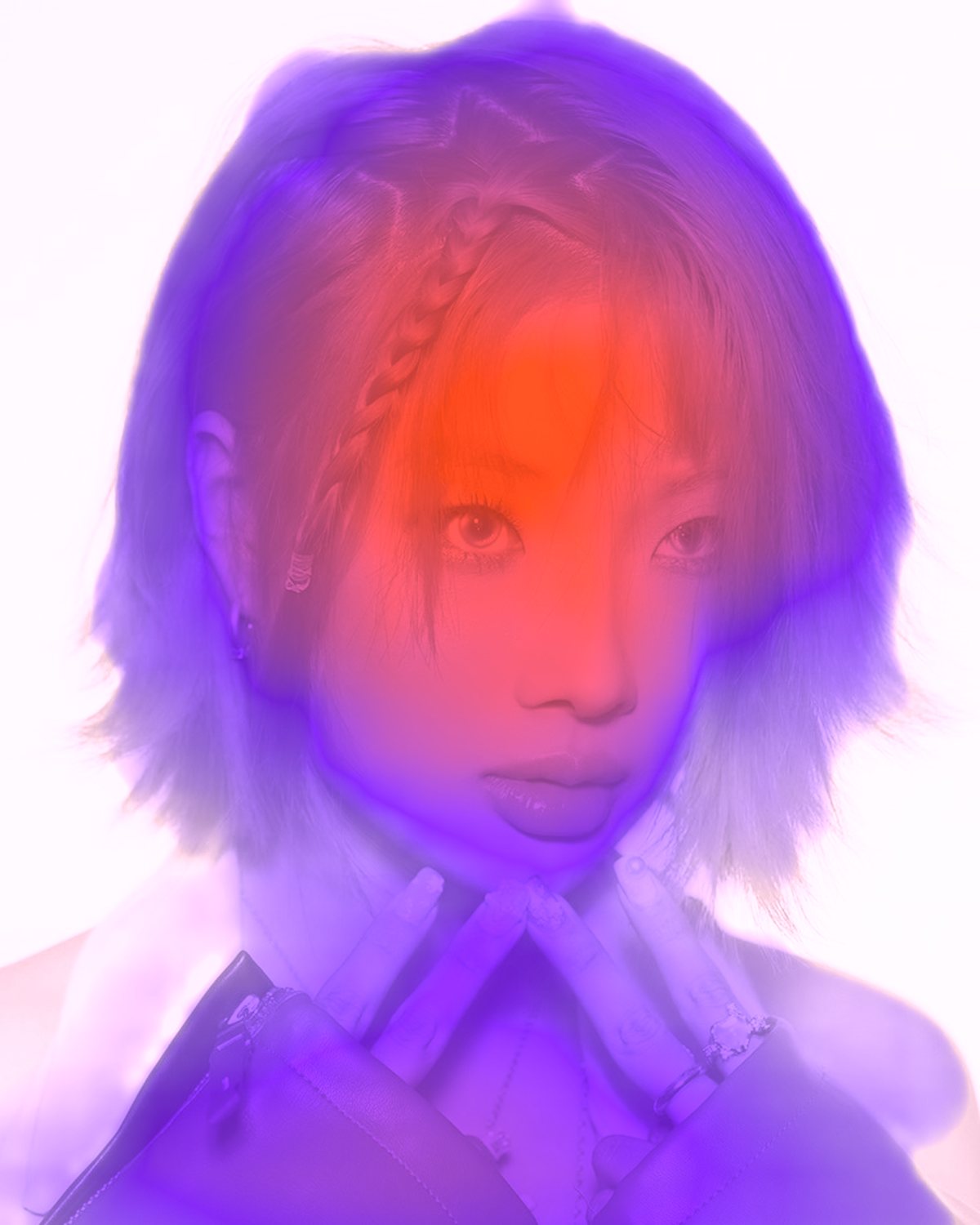
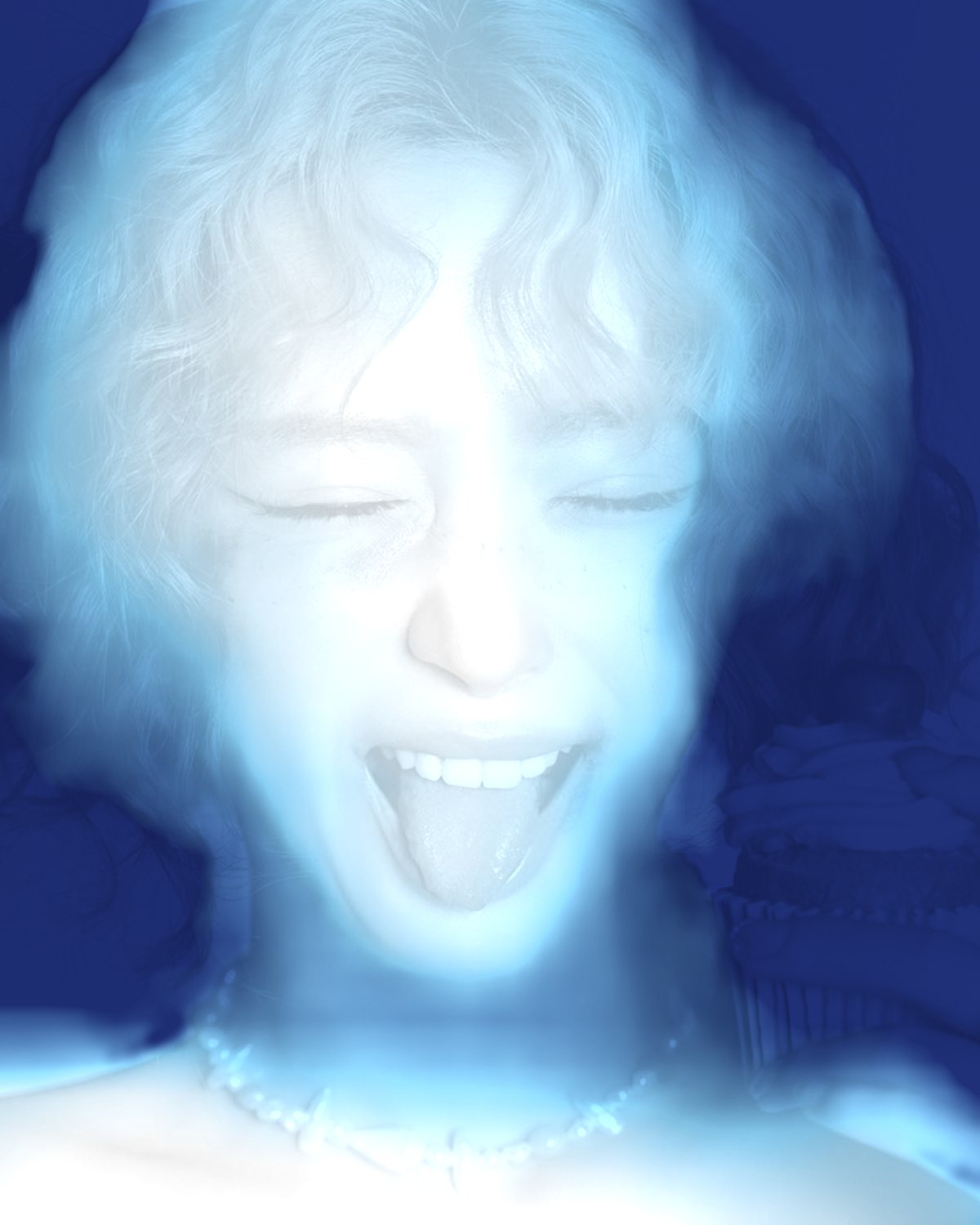
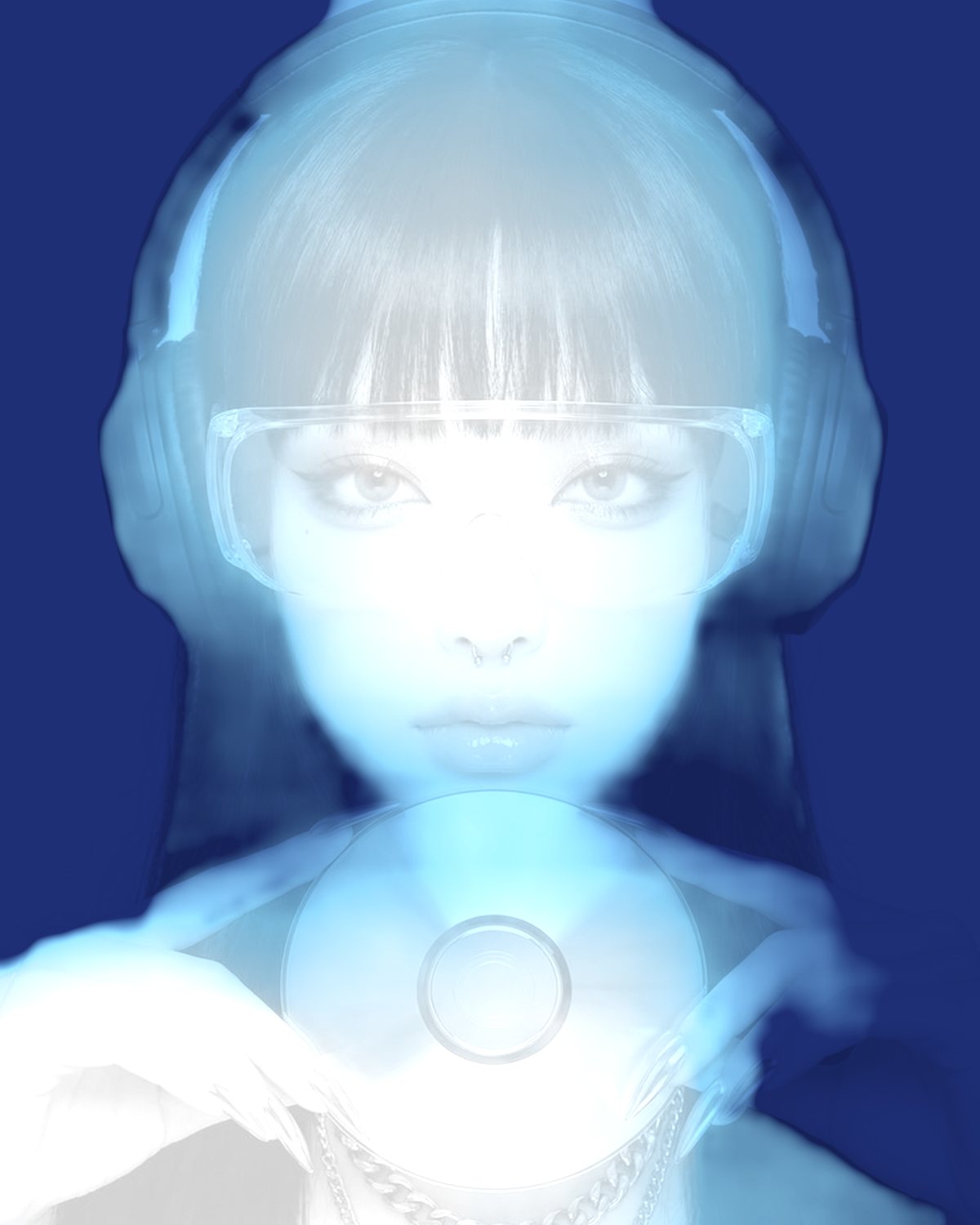

Use the depth gradient effect in Photoshop, Affinity or Figma.
One licence covers all three: $59.99, paid once. See pricing
Photoshop
Open Filter Archive from the Plugins menu, pick Light Map and press Apply. The result lands on a new layer above your original.
Mac & Windows · Photoshop 2024+Affinity
Choose Filters, Plugins, Filter Archive on a pixel layer, pick Light Map and apply it to that layer.
Mac & Windows · Affinity 3Figma
Select an image, frame or shape, run Filter Archive and apply Light Map as a new layer or in place.
Figma CommunitySettings worth touching.
- ColorsGradient
- The spectrum from near to far. The first color sits nearest the dot you place; add as many as you like and drag them into order.
- BandsGradient
- Steps the spectrum into flat bands, contours of depth for a thermal-camera look. Zero is smooth.
- DistanceGradient
- How high the dot stands over the picture. High, the colors follow the shape alone; lower, they also pool around the dot.
Plus 40 more in the panel, all editable after you pick a preset.
Depth Gradient Effect questions.
What is a depth gradient effect?
A depth gradient effect colors a picture by how near or far each part is, rather than by how bright it is. The closest point takes one end of a color ramp and everything else runs through it with distance.
How do I make a depth gradient effect in Photoshop?
Open Filter Archive from the Plugins menu and choose Light Map. Start from a preset such as Contours or Heat, adjust the settings while the preview updates, then press Apply. The result goes on a new layer and your original stays untouched.
Can I use it in Affinity or Figma?
Yes. The same Light Map filter runs in Affinity 3 on Mac and Windows, from Filters, then Plugins, then Filter Archive on a pixel layer, and in Figma on an image, frame or shape. One licence covers Photoshop, Affinity and Figma.
Which presets come with Light Map?
5 presets: Contours, Heat, Thermal, Duotone and Ice. Every setting stays editable after you pick one, and you can save a stack of filters to use again.
Can I change the colors?
Yes. Light Map has Shadow, Color, Color and Color color controls, so you can set them to any color, including your own palette.
Related effects.
See all 42




Your photos next
Make a depth gradient effect yourself.
Light Map and 41 more effects in one plugin window, with a live preview and 226 presets. One licence covers Photoshop, Affinity and Figma.